.svg)
Instructions
Quick Start Guide: Get started editing your website with this easy-to-follow guide.
Support: Explore Webflow University's library for comprehensive video lessons on getting started.
- Getting Started with Webflow
- Lesson library
Useful links from Webflow University:
- Style manager
- Using Interactions
Before Publishing: Delete unused sections/pages, clean up CSS classes, clean up unused interactions and delete unused components.-
Breakpoints: Check how your changes behave on different devices by clicking on the top bar of the viewport.
Backups: Restore previous versions from the Backups section in the left sidebar and clicking Settings in case of accidental deletions.
Editing Images and Text: Edit text by double-clicking on static content or use the CMS section for dynamic text. Replace images easily by clicking on them and choosing "Replace Image."
Dynamic Content (CMS): Learn how to manage and update dynamic content using the CMS, which instantly updates referenced content across pages.
Components: Utilize reusable components for efficient editing and consistency across layouts.
Breakpoints: Check how your changes behave on different devices by clicking on the top bar of the viewport.
GSAP
You can find all the GSAP classes, GSAP connected Webflow variables and how to turn off GSAP here. This gives you powerful customization opitions to change this template in a major way.
Text Staggers
All GSAP animations are controlled by classes. You can find all the classes in bold below.
GSAP Classes
GSAP Stagger Fast: This class staggers text at a fast speed
GSAP Stagger Mid: This class staggers text at a medium speed
GSAP Stagger Slow: This class staggers text at a slow speed.
GSAP Stagger Center On Scroll: This class staggers text from the center on scroll
Div Staggers
GSAP Stagger Divs Fast: This class staggers the direct child div at a fast speed
GSAP Stagger Divs Slow: This class staggers the direct child div at a slow speed
GSAP Stagger Divs Slow: This class staggers the direct child div at a slow speed
Hero
Grid Left: Selects the left grid.
Grid Right: Selects the right grid.
Hero Image Wrapper: Wraps around a hero image.
Hero Image: Selects the hero images.
Hero Full Image: This is the full screen hero image.
GSAP Stagger Loop: This class staggers the hero text. First with an intro stagger and secord with a stagger loop.
Works
Work Wrapper: The wrapper for every work.
Work Image Wrapper: Wraps around a work image.
Work Image: Selects the work images.
Call To Action (CTA)
CTA Grid: Selects the main CTA grid
CTA Grid Image: Selects the CTA images.
CTA Grid Overlay: The CTA overlay to add a darker backdrop when the title enters.
CTA Title: The CTA title.
Button with Circle Icon: The CTA button.
GSAP Variables
There are Webflow variables for most of the GSAP settings. You can customize this template without ever looking at a single line of code.
Text & Div Stagger Speed
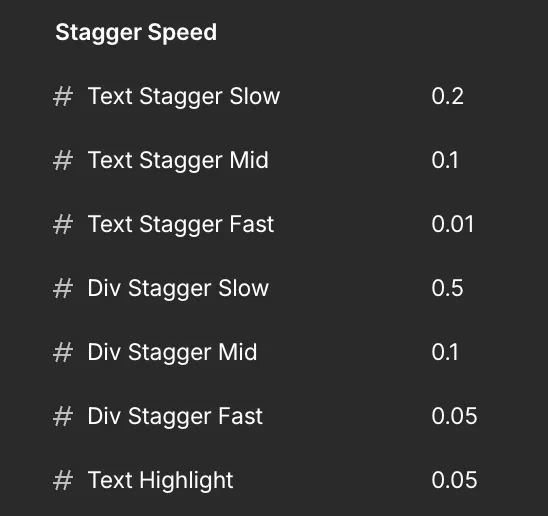
Text & Div Stagger Inital Start Settings
This sets the inital settings for the text & div staggers.
In the case of the text staggers - each character of a paragraph will start at 32px below (Y Position), 16px of blur and 0 opacity.

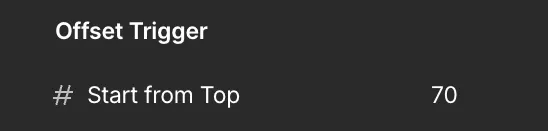
Offset Trigger Settings
This sets when the text & div staggers are triggered from the top.
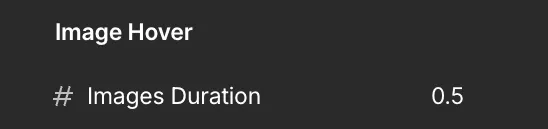
Hero Settings
This sets the duration of the fade in and fade out of the full size hero images.
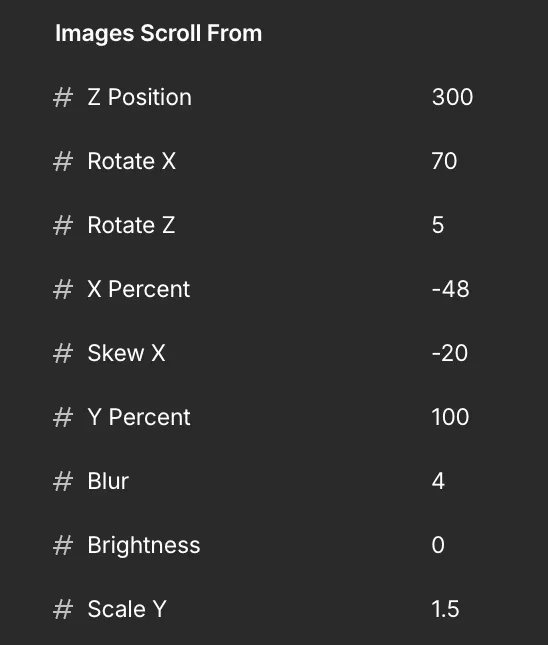
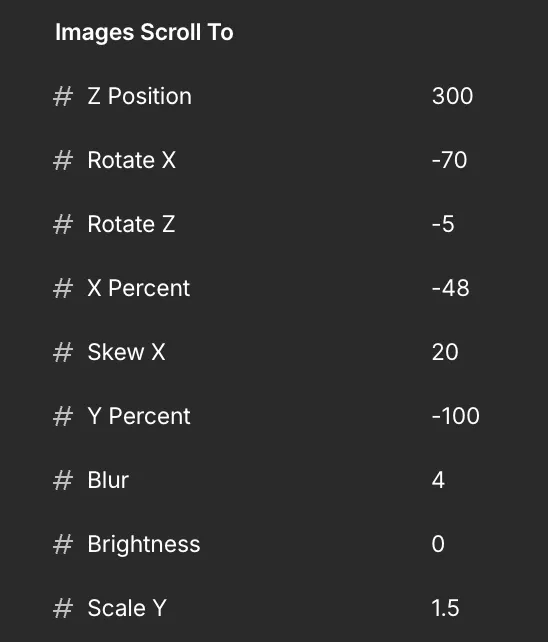
Variables to set the hero images scroll behavior. There is Images Scroll From & Images Scroll To.
"From" is bottom part of the screen and "To" is the top part of the screen.
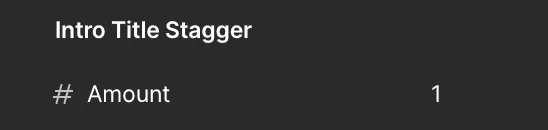
This is the total stagger time for the hero's intro title.
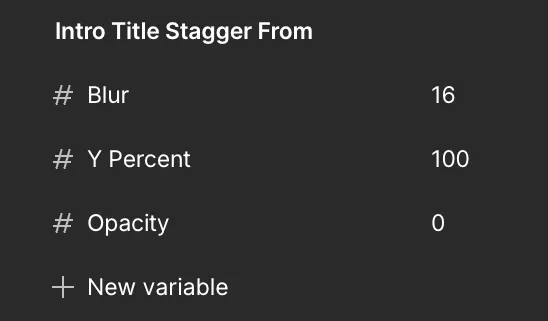
The start settings for the hero's intro title. It staggers from 100% below with a 16px blur from 0 opacity.
This is the hero's title stagger loop that starts after hero's intro title ends. The total stagger time is 0.5 with a delay or pause of 1 between each stagger.

ON or oFF Settings
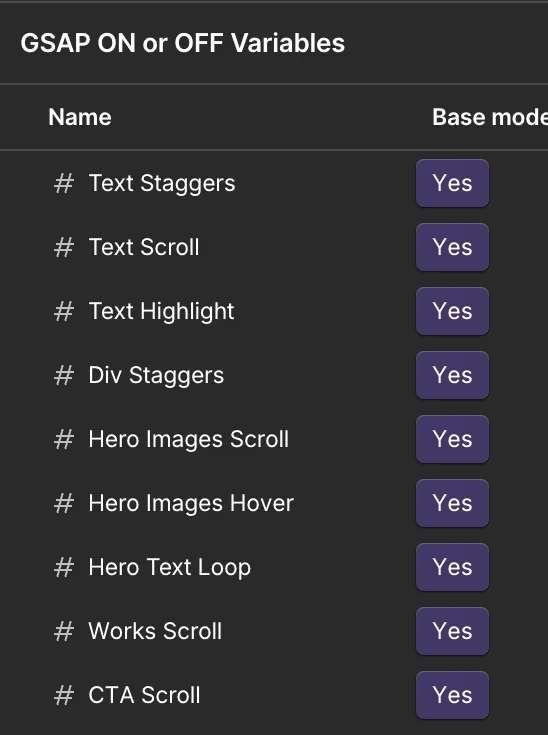
Any part of GSAP can be turned on or off by selecting either the "Yes" or "No" variable for the base mode. All elements will start at their original settings without any movement if turned off. The template will work perfectly without GSAP activated.
GSAP custom code
There are Webflow codes for most of the site settings. You can customize this template without ever looking at a single line of code.
Lenis smooth scroll implementation
<script src="https://cdn.jsdelivr.net/npm/@studio-freight/lenis@1.0.42/dist/lenis.min.js"></script>
<script>
window.Webflow = window.Webflow || [];
window.Webflow.push(function () {

  if (window.matchMedia('(hover: none)').matches) return;

  var lenis = new Lenis({
    duration: 1.2,
    easing: function (t) { return 1 - Math.pow(1 - t, 4); },
    smoothTouch: false,
    normalizeWheel: false,
    lerp: 0.1,
  });

  // RAF loop
  (function tick(t) { lenis.raf(t); requestAnimationFrame(tick); })(0);

  // Keep Webflow ix2 scroll triggers working
  lenis.on('scroll', function () {
    window.dispatchEvent(new Event('scroll'));
  });

  // Fix: recalculate Lenis scroll height after all images/fonts load
  // This prevents the white gap caused by late-loading content
  window.addEventListener('load', function () {
    lenis.resize();
  });

  // Fix: recalculate when any image on the page finishes loading
  document.querySelectorAll('img').forEach(function (img) {
    if (!img.complete) {
      img.addEventListener('load', function () { lenis.resize(); });
    }
  });

  // Fix: recalculate on window resize
  window.addEventListener('resize', function () { lenis.resize(); });

});
</script>Let AI do the Work so you can Scale Faster
A web developer who’s passionate about performance, security, and great user experience. From concept to clean code
.png)